Showing posts with label interesting tips. Show all posts

Sunday, May 7, 2023

How to clean your gmail and prevent from spamming.

As now for all of us using Gmail has become a necessity in our everyday life. But there is one thing that bothers all of us a lot. Because Google gives us 15 times a fixed storage which we use for all Google services.

Similarly, our Gmail is also one of those Google services which keeps getting filled due to spam emails. So let's talk about some of these solutions today, how you can avoid these spam emails. And how to delete them all at once.

1. Unsubscribe from unnecessary emails


- Login into your Gmail and type "unsubscribe" in search bar. It will then show all emails which are unnecessary and not important for you.


- Select all emails at once and click on "i" button like below highlighted in yellow.


- Then click on "Report spam & unsubscribe".


This is how you unsubscribe yourself from those annoying emails.

2. Delete all emails at once.

- Login your Gmail and type "Unsubscribe" in search bar and select all emails. Once you select all emails, it will select only 50 emails that are appearing on your screen. Therefore, you need to click on "Select all conversations that match this search".


- When you select all conversation it will show below message:



- Simply delete all emails and you're done!!

or you can select all emails without searching unsubscribe and then select all conversations and delete all the emails at once. But I suggest you to review emails and uncheck those you don't want to delete because this action will sweep all emails from your inbox. 

Monday, September 19, 2022

How to create a passport photograph without any technical knowledge of photo editing.

You know very well how many places we need our passport size photograph. And to get these photographs, either we have to go to the photographer which takes both our money and time or some people who are expert in photoshop skills or good in editing their photos with other applications, can edit their photos easily.

But some people who neither have so much time nor do they have much understanding of photo editing, what should those people do in such a situation?

Let me tell you today such a way by which you can easily make your own passport size photo. You just need a photograph of yours where your face and both ears are showing in it. Just click it with your phone camera if you haven't. 

Now you can see steps below.

First, you have to go to here.

Then select country and size and click on Start.


You can upload your photo which you have taken from your mobile camera.

Please note that your photo should not exceed 10 MB in size.


Make sure your face is in between two blue lines in selection area as shown below and click on Next.


It will then process your photo and give you multiple edited version of the photo to save/download in your system. and there you go!!


Thanks for visiting. Looking forward to see you soon in the next one.


Sunday, February 13, 2022

Tired of third party applications ads in Android? Let's get rid of them.


Android is such an operating system in which you can customize settings according to you and that too on developer level and for this reason, there are countless applications available for Android which will give a good experience to the user. And this is also a big reason why Android is so popular in mass.


But in most of the applications which are available for free on play store, you see many advertisements when you are using those apps. And sometimes these ads have the ability to spoil your good experience.

So let's see today how to get rid of those annoying ads with a simple tweak.


1. Go to you phone's setting and search for DNS and click on it or you can find these settings under Connection & Sharing (Name could be a little different in different phone models).


2. Under DNS settings you'll find 3 options. Just choose the third one where you can designate a private DNS.


3. Type dns.adguard.com and save it by tapping ok.

That's it!!

Now whenever you use any such app, in which earlier you used to see ads, now you will not get it.

Let me know in comments if you find any issues while doing it.


Thank you and see you in next one :)


Monday, December 27, 2021

Something very useful for your daily computer life.


We do many things daily on our computer/laptop online and offline as well and we need several tools for different types of work. But how useful it will be if you can get all the things you need at one place.

So, I am here to let you know such website which will surely be helpful in your daily life. Just go to https://123apps.com/ and you will see different tools section such as video editing tools which can help you to edit your videos.


Similarly, there are many options you can find here like audio tools, converters or if you want to edit your pdf files. everything you can do at one place with the help of single click. Also, the interface is very easy to understand. So, try and let me know how you find it.

Thursday, May 21, 2020

Missing Long Drives in Lockdown? Here is the solution.

Hope everyone is doing fine in this lockdown 4.0. I know there are many things you must be missing. But it is good to stay at home and stay safe. Many of you must be missing out on walking streets, going malls and restaurants. Hanging around with your friends and long drives in your cities.


I have a suggestion if you are also missing long drives. Obviously it will not be as fun as real, but still you will be able to enjoy it to a great extent by sitting at home. All you have to do is click here or copy paste the link given below to your browser, choose your favorite city, tune your favorite radio station and that's it.


You can also switch on the street noise to make it more realistic.


Monday, May 4, 2020

How to save someone's WhatsApp status(Pictures/Videos) on your android phone without any application.


Hello everyone out there. Hope you and your family are safe. I am here after a very long time. In this quarantine period, I thought this is a pretty good time to revive this blog. So, let's get started with some interesting WhatsApp trick.

WhatsApp has become an important part of our daily life. Each and every member in the house is using it, be it Mom, Dad, even our grandparents too. And since when the story feature came, this has become the most popular feature on whatsapp. Due to popularity of this feature, Facebook launched it for Instragram and facebook itself thereafter.

In story feature people put pictures/videos/texts in their status that disappears automatically after 24 hours. However, we find some story really interesting and funny that we want to save those in our phone. We take simply screenshot if we like any pic story but we cannot do anything when a video story is there.

WhatsApp do not allow to save story on your phone but you can do this by a simple trick. Just follow below mentioned steps:

  • First, you have to see the complete story in WhatsApp which you want to save.

  • Open your File Manager and go to the folder called 'Whatsapp'


  • Than go into the folder 'Media'


  • Go to the folder '.Statuses'


In .Statuses folder you can find all the stories you have seen whether it is pic or video. Now, you can move them into your desired folder.

I am using Mi phone so I have Mi File Manager by default in my phone. You can use any file manager you want or download Mi File Manager in your phone if you want. 


 That is it for today guys. Stay tuned for the next post.

Monday, March 9, 2015

Enjoy Your Android Apps On Desktop

Is topic ke regarding mujhe bahut se message aa chuke hain, actually mujhe pehle hi is topic par post deni chahiye thi. par chalo thoda late hi sahi.

Aap apne android apps ko apne desktop par use kar sakte hain. jaise bahut se log apne android games ya application ka desktop version chahte hain jinme kuch special apps ka desktop version to mil jayega par sabhi ka nahi.


Is condition me jab apko apni sabhi applications ko desktop par chalana hai to aap ek App player ki help se aisa kar sakte hain. Is App player ka naam hai Bluestacks jo ek Android emulator hai PC aur Mac ke liye.

Isko Operate karna bahut asaan hai, jaise koi video player hota hai aur apki videos usme play hoti hain bas kuch isi tarah hai app player jo android apps apke desktop par play karne me help karta hai.

Bluestacks ke bare me aur information aur download karne ke liye yahan jayein.

Friday, March 6, 2015

Finally, I am back!!! let's do something interesting

Is baar to wapas aane me kuch zyada hi waqt lag gaya. bilkul bhi waqt nahi mil pa raha tha blogging ka bas thoda bahut social sites par active tha. lekin is baar I try my best to be a regular blogger.

Mujhe apne visitors se kuch suggestion bhi chahiye is baar. Par pehle baat karte hain aaj ki post ki.

Koi zyada technical post nahi dunga kyunke bahut waqt ho gaya post diye hue to kuch intresting karte hain.

Aap me se mostly net users Google Chrome to use karte hi honge. aaj ki post unhi logo ke liye hai jo ye browser use karte hain. kabhi kabhi jab Internet disconnect ho jata hai to aap browser me ek chota sa dinasaur dekhte hain. jisko Google ne T-Rex dinasaur ka naam diya hai jo apke offline hone par chrome me kuch aise dikhta hai.

Ye Screenshot Android cellphone se liya gaya hai aur aap jab desktop chrome use karenge to offline hone par ye T-Rex dinasaur hi dikhega. aur jab apka net chal hi nahi pa raha ho to aap apna time spare karne ke liye ise ek game me convert kar sakte hain jo Google ne Chrome me in built diya hai.

Bas apko is dinasaur ke dikhne par space bar se is addictive game ko activate kar sakte hain. aur game kuch is tarah se chalega.
aur isse bhi zyada intresting baat ye hai ke aap is game ko Android par bhi khel sakte hain. bas diffrence itna hai ke dektop par apko space baar use karna hai aur Android device par screen par tap karna hai. par uske liye apko offline hona zaruri hai.
isse pehle Youtube ke bare me bhi maine ek aisi hi post di thi jise aap yahan click karke padh sakte hain.
aur meri last post bhi Chrome ke ek offline feature ke bare me thi jise aap yahan click karke padh sakte hain.

Important!!
1. Mujhe kafi sare friends ke msg whatspp ke desktop version ke bare mile aur bahut se msg abhi tak main padh bhi nahi paya hoon. I thought main us topic ke liye late ho gaya hoon aur aap sab logo ko wo use karna aa gaya hoga. lekin agar abhi bhi aapme se kuch logo ko doubt hai to comment me batao main us topic par post de dunga.

2. Dusri baat main ye puchna chahta hoon ke main apke is blog ki post agar English me deni shuru kar doon to koi prob to nahi?
Maine jab se is blog ko shuru kiya tabhi se HINGLISH me post karta hoon kyunke mujhse kuch logo ne aisa karne ko kaha tha par ab unme se kisi ko koi problem nahi. so agar kisi visitor ko problem na ho to main bhi english me hi post karna chahunga.
apni suggestion zaroor dein. That means a lot to me guys. dont forget to comment about it.

Take care & stay tuned for the next post

Friday, June 20, 2014

How To Play Videos files Without Any Player


Kabhi kabhi aisa hota hai ke aapne windows format ki aur apne pc me koi video player bhi nahi hai. aap offline hain aur internet bhi nahi chala sakte. aur aise me aap windows ke default player Windows media player me bhi use play nahi kar pa rahe hain.

Kyunki windows media player me bahut se format support nahi karte aur agar aap mp4 ya mkv jaisi files usme chalana chahte hain to apko alag se codecs install karne padte hain. ab aisi condition me jab aapke paas koi bhi option nahi hai file play karne ke liye tab aap ek kaam kar sakte hain.

agar koi bhi player apke paas nahi to bhi aap file play kar sakte hain par uske liye apke paas Google Chrome Browser hona chahiye. jisme aap hd file format jaise MKV aur MP4 easily play kar sakte hain. bas iske liye apko wo file drag karke chrome browser me drop karni hogi aur file browser me play ho jayegi.

Iske alawa Chrome browser ki help se audio files bhi play ki ja sakti hain.

Take care freinds.

Thursday, May 22, 2014

How To Make Your Computer A WiFi Hub Without Any Software

Aapme se zyadatar logo ne WiFi se internet use kiya hi hoga. aur main apko bata du WiFi set up karna koi zyada mushkil kaam nahi hai. Agar aap apne Computer/Laptop par internet use karte hain aur apke Computer me WiFi card bhi laga hai to aap apne Computer/Laptop ko WiFi hotspot bana sakte hain jisse dusre users bhi usi connections se apni device connect kar sakein. aur aisa karne me aapko wires ki aur kisi software ki zarurat nahi hai.


Notepad use karke aap aisa kar sakte hain. To chaliye dekhte hain kaise hota hai ye sab.

1. Sabse pehle Notepad open kijiye aur niche diya hua sara code usme copy kar djiye.


netsh wlan set hostednetwork mode=allow ssid=WiFi Hub key=12345
netsh wlan start hostednetwork


2. Ab jahan Code mein Wifi Hub likha hai wahan aap koi bhi SSID name Set kar sakte hain jahan 12345 likha hai wahan WiFi ke liye password set kar sakte hain.

3. Ab Is notepad file ko Desktop par hi start.bat ke naam se save kar lijiye. jisse ye ek batch file me save ho jayegi.

4. Ab fir se notepad open kijiye aur niche diya hua code usme paste karke use stop.bat ke naam se pehle wali batch file ke sath hi save kar dijiye.


Ab jab bhi apko apne Computer ko WiFi Hub banana ho to start.bat file par double click kijiye aur kisi bhi dusri device chahe computer laptop ya fir mobile me aap net use kar payenge aur jab apko ise band karna ho to Stop.bat  file par click kijiye WiFi close ho jayega.

Take care friends

Wednesday, June 5, 2013

Increase PC Speed With Notepad.


Aaj bahut dino baad koi post likh raha hu. frnds time ki kami ke chalte blog ko thoda kam time de pa raha hu par koshish karta hu jab bhi time mile apke bich kuch zarur lekar aaun. jaise aaj laaya hun.

Notepad ki help se hum apne system ki RAM ko free karke speed ko increase kar sakte hain. aur isme koi doubt nahi ki RAM computer system ka ek bahut hi important part hai. ye computer me bilkul is tarah hai jis tarah car me CNG gas hoti hai. jitni zyada apke computer ki RAM free hogi, computer utna hi fast kaam karega. Isliye RAM cache ko clear karna system ki speed increase karne ka ek acha tarika hai. maine pehle bhi isi topic par ek post di thi jise aap yahan padh sakte hain.

Notepad tweak se pehle te steps follow karne honge:-

 1. My Computer par jakar Tools (agar aap XP use kar rahe hain) ya Organize (agar aap WIN 7 use kar rahe hain) par click kijiye.

2. "Folder Option"(XP) ya "Folder and Search"(Win 7) par click kijiye.

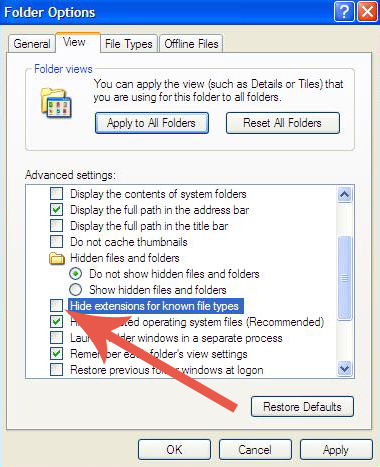
3. Ab View tab par jaiye aur "Hide extension for known file type" ko uncheck kijiye.

4. OK par click kijiye.

In settings ke baad ab notepad tweak ki baari aati hai:

1. Notepad open kijiye.

2. usme  mystring=(80000000)  type kijiye.

3. Is notepad file ko RAM.Vbe naam se save kar lijiye.

Ab jab bhi aap is file par double click karenge ye apki computer RAM ko clear kar dega jisse apka system lagbhag 80% fast ho jayega.

Take care friends

Monday, April 8, 2013

Another Cool Trick To Lock A Folder

Maine pehle bhi kuch tricks batayi hain jinki help se aap apna folder secure kar sakte hain bina kisi software ke. aaj bhi apke sath aisi hi ek aur trick share kar raha hu jo apke personal data ko unknown logo se bachayegi.

1.sabse pehle apko ek folder create karna hoga, suppose apne koi folder xyz name se create kiya.

2. Jahan folder create kiya hai wahan 2 batch file banani hongi. pehli folder lock karne karne ke liye aur dusri unlock karne ke liye.

Notepad open kijiye aur niche diya hua sara code usme copy kar dijiye aur use lock.bat name se save kijiye jahan apka folder hai.


Fir se notepad open kijiye aur ye code usme copy kijiye aur use key.bat se name se save kijiye.


Ab folder ke sath apke paas do batch file hain jab apko folder lock karna ho to lock.bat par double click kijiye isse apka folder control panel ke icon me change ho jayega.

aur unlock karne ke liye key.bat file par double click kijiye to folder wapas aa jayega. aap chahein to apni dono batch files ko hide bhi kar sakte hain jisse koi aur folder ko lock ya unlock na kar sake.

Jin logo ke PC me ye trick work nahi kar paa rahi hai pehle wo My Computer ya Control panel me jakar folder option ko open karein aur usme View Tab me jakar dekhein ki Hide extensions for known file types ke aage box me check hai ya uncheck agar check hai to use uncheck karein jaisa niche image me dikhaya gaya hai.


NOTE- Folder lock karte waqt apke folder ka jo bhi naam ho use code me xyz se replace karna hoga. ya fir aap xyz name se hi folder create kar sakte hain

Sunday, April 7, 2013

How To Create A Backup/Setup Of Installed File In Android Device.


Jaisa ki aap log jaante hain ke ab android set bahut demand me hain aur har koi android phone hi use karna chahta hai. aur jab android mobiles reasonable price par mil bhi rahe hain to fir koi dusre mobiles par apne paise kyun spend kare.

Jaisa maine pehle bhi bataya tha android ke popular hone ki wajah hain usme run karne wali applications aur games jo Google play store par free aur paid dono me available hote hain.

Aur log ek dusre ke kehne par same applications/games install bhi kar lete hain par prob jab hoti hai agar apko apna mobile reset/format karna ho tab sari applications jo apne play store se download ki hain wo sab bhi erase ho jati hain aur aapko fir se unhe download karna padta hai.

lekin aap apni unhi sari applications aur games ko bacha sakte hain aur aap mobile ke reset hone ke baad unhe fir se install kar sakte hain aapko unhe dobara download karne ki zarurat nahi hogi.

iske liye apko apne android mobile me ye software download karna hoga jiska naam hai clean master.

aap ise aise PC se bhi direct mobile me install kar sakte hain jaisa maine is post me bataya ya fir apne mobile me hi Google play store open kijiye aur Clean master ke naam se search kijiye.

Clean master ke mobile me install hone ke baad use open kijiye.


Ab usme niche App Manager ko open karenge to apke mobile me jitni bhi apps installed hongi un sabko wo show karega


In Apps me se jinka bhi aap backup/setup lena chahte hain unke samne check box me mark kijiye aur niche backup button ko touch kijiye.

In sabhi files ka backup aap pc me bhi copy kar sakte hain. aur jab chahein mobile me install kar sakte hain. ye sabhi .apk files hongi jo android me hi kaam karti hain.
aur in files ko aap friends ke sath share bhi kar sakte hain.

Take care friends.

Friday, March 8, 2013

How To Install Android Apps From Pc To Android Mobile.


Abhi kuch din pehle maine january me sales hone wale handsets ki statistics padhi to pata chala ke 60% se zyada logo ne Android handsets ki demand ki aur baki 40% me Symbian, Java, Rim, Apple aur Windows smartphones the.

Android handsets ke common hone ke bahut sare reason hain jaise ye kafi user friendly hai aur sabhi Android Mobile ke features aur function same hi hote hain chahe Handset diffrent companies ke ho, aur Android Google ka operating system hai to isme apko bahut sari facilities in built milti hain. jaise aap Google Play Store se bahut sari applications aur Games download kar sakte hain jinme Paid aur Free dono hain.

Ho sakta hai aap pehle se hi koi android mobile use kar rahe ho to aapne shayad Google play se apps download bhi ki hongi. Par aaj main apko batata hu ki kaise aap koi bhi application ya game apne pc par download karenge aur wo automatically apke Mobile me install ho jayegi.

Aisa karne ke liye Apke PC aur Mobile dono me internet active hona chahiye. fir kuch steps se hokar aap aisa kar payenge.

1- Sabse pehle aap apne Android mobile ka internet(Packet Data) On kar lijiye.

2- Ab apne PC par Google page open kijiye aur jis Google Account se apne Mobile me Login kiya hua hai usi account se Google par login kijiye. Aur agar abhi tak koi account apne mobile par login nahi kiya hai to koi bhi Gmail Id se PC aur Mobile dono par login kijiye.


3- Ab Google page par jo bar hai usme Play par click kijiye.


4- Google Play Shop open ho jane ke baad Shop Android Apps par click kijiye.


5- Ab kisi bhi catogory ko click karke open kar lijiye jaise maine Free category ko open kiya hua hai. aur jo bhi application apko download karni ho uske niche Install button par click kijiye jisse ek aur Window apke samne open hogi.


6- Yahan par apne Handset ko select kijiye aur niche install button par click kar dijiye. kuch hi der me application apke Handset me Install ho jayegi.


Take care freinds

Saturday, March 2, 2013

A Simple & Interesting Folder Trick


Aap ek folder ke sath bahut kuch kar sakte hain aur aaj main apke sath ek aisi trick share kar raha hu jisse aap koi folder bana kar ya kisi old folder ko rename karke my computer ke icon me change kar sakte hain.


agar simple words me kahu to my computer ka ek shortcut aap kahi bhi create kar sakte hain. bas apko niche diya gaya code copy karna hai aur folder ko isi code se rename karna hai.


Take care freinds

Friday, March 1, 2013

What’s the meaning of asl, brb, lol, wtf, pw, afa, atm, faq, tos.. etc – Collection of most used abbreviations

Aajkal sabhi ke paas time ki kami hai, jiske liye hum sabhi kisi bhi baat ko asani se kehne ke liye short aur Quick words ki help lete hain. in short words se kaam bhi jaldi ho jata hai aur baat bhi meaningful aur full expression ke sath deliver ho jati hai.

Aur aajkal to internet users har dusre din koi naya short word le aate hain aur bahut se user aise hain jinhe abhi tak samajh nahi aata ke ye sab hai kya, aise hi logo ke liye kuch most popular aur intresting short words yahan unke meanings ke sath de raha hu jo apke kaam ayenge aur ho sakta hai isse pehle bhi aapka samna inse ho chuka ho.


AFK – Away From Keyboard
ASAP - As Soon As Possible
ASL – Age/Sex/Location
ATM – At The Moment
A3 - Anytime, Anywhere, Anyplace
BBL - Be Back Later
BBS – Be Back Soon
BBQ - Barbecue
BFN/B4N – Bye For Now
BRB means – Be Right Back
BRT – Be Right There
BTW – By The Way
B4N – Bye For Now
Blog - Also known as web log or an online journal
CU – See You
CYA – See You
CUZ  - Because
DND - Do not Disturb
EOF - End Of File
FAQ  - Frequently asked questions
FTL - For the loss
FTW – For the win
FYI - For your information
GR8 – Great!
GTG – Got to Go
G9 – Genius
GBTW – Get back to work
GF - Great/good fight/girlfriend
GFU - Good for you
Gratz - Congratulations
GM - Good Morning
GN - Good Night
HAND - Have A Nice Day
HF - Have fun
IC – I See
ICQ – I Seek you
ILU – I Love You
IM - Instant Messenger
J/K  - Just kidding
KISS - Keep it simple stupid
LDR – Long Distance Relationship
LMAO – Laugh My Ass Off
LOL – Laughing Out Loud
LTNS – Long Time No See
L8R – Later
M/F – Male or Female
Msg - Message
M8 - Mate
NE1 – Anyone
NP - No Problem
OIC – Oh I See
OS – Operating system
OMG – Oh my God!
PLZ – Please
PPL - People
RIP - Rest in Piece
s2pid - stupid
SD - Sweet Dreams
SEC- second
sk8 – skate
Some1 - someone
Spoz – suppose
Sry – sorry
SS – so sorry
str8 - Straight
SU – shut up
SYS - see you soon
SUP - What’s Up
SYL - See you later
THX – Thank You
TTYL - Talk To You Later
TG – That’s great
TOS - Terms of service
TC – Take Care
U - You
U4E – Yours For Eve
WB - Welcome Back
WTF - What the Fuck
W8 – Wait…


inke alawa agar aapke paas bhi aur koi short words hain to aap mere sath share karein main unhe bhi is post mein add karunga.

Take Care freinds

Thursday, December 27, 2012

Some Handy, Secret Shortcuts For Your Browser


Internet par surf karte waqt time save karne ke baare me aapka kya khayal hai, Aaj main apko kuch aise useful shortcut batane wala hu jo net surfing ke waqt apka time save karenge aur apki productivity ko increase karenge. Aur ye sabhi shortcut kisi bhi browser par kaam karenge.

chaliye jante hain un shortcuts ke baare mein.


1. Ctrl+Tab
aap jis tab par hain usse right tab par ye shortcut apko le jayega, agar aap left tab par aana chahte hain to  Ctrl+Shift+Tab ka use karein.

2. Ctrl+Shift+T
Agar aapne accidentally koi tab close kar di hai to aap is shortcut se use reopen kar sakte hain.

3. Ctrl+L
Aap kisi bhi page par hain aur apko koi address type karna hai to is shortcut ka use karein ye direct address bar ko highlight karega.  Alt+D ya F6 se bhi aap aisa kar sakte hain.

4. Ctrl+Enter
ye kisi bhi website me "www." aur ".com" add kar deta hai, agar apko mera blog dekhna hai to aap address bar me sirf type karein "shazanzahid" aur is shortcut ka use karein.

5. Ctrl+E 
Kisi bhi query ko search karne ke liye iska use kar sakte hain.

6. Alt+Home
ye shortcut ya to apke homepage ko ya fir ek nayi tab open karega. in dono me se kya open hoga ye apke browser ki settiing par depend karta hai.

7. Ctrl+O
hard drive se koi bhi file agar aap browser me open karna chahte hain to iska use karein.

8.  Ctrl+J
Agar aap ye janna chahte hain ke apne kitni files download ki hain aur kab ki hain to ise use karein ye apke browser ki download history ko open kar dega.

9. Ctrl+Shift+Del
kisi bhi browser ki history ko clear karne ke liye sabse easy way.

ummid hai ye shortcuts apko pasand ayenge, inhe apne freinds ke sath bhi share karein.

take care freinds

Thursday, December 20, 2012

How To Get Info Of A Computer System


Jab bhi aap apne pc ya laptop ki configuration janna chahte hain to my computer par right click karke uski information le lete hain.

par wo bhi puri information nahi hoti agar aap apne computer ko achi tarah se janna chahte hain to uske liye softwares aate hain jo computer info batene me apki help karenge par jo tarika main aapko bata raha hu usme apko kisi software ki zarurat nahi padegi

bas apko run command open karke usme type karna hai dxdiag , aur enter karte hi apke samne apke system ki sari information hogi. simple!!!!!

take care freinds

Friday, November 16, 2012

How To Cut A Video From DVD or CD


Aap soch rahe honge ki isme kya naya hai agar hamein kisi movie se koi particular scene ya song chahiye hota hai to use alag karne ke liye bahut se CD aur DVD cutter available hain jo thik thak kaam bhi kar lete hain, par agar aap bina kisi software ko install kiye bina koi song cut karna chahein ya aapke paas kisi tarah ka video cutter nahi hai to aap fir bhi aisa kar sakte hain. bas aapke system mein VLC player hona chahiye.

VLC player best open source software hai jo bahut jaldi popular ho gaya hai aur ye hai bhi kamaal ka. ek video player hone ke sath sath isme aise function hain jo abhi tak kisi player mein nahi dikhte. jaise ki hum aaj baat kar rahe hain kisi movie ya video se koi khas scene ya song cut karne ki.

To chaliye dekhte hain kis tarah se hum VLC player ko video cutter ki tarah use kar sakte hain.

sabse pehle VLC open karein aur usme View tab me jakar Advanced Controls par click karein. aisa karne se niche pallatte par kuch extra buttons aa jayenge.


fir uske baad koi bhi video play karein aur jo song ya scene apko chahiye uske shuru hote hi niche record(red) button par click karein isse wo song record hona start ho jayega aur jahan apko song rokna ho fir se record button par click kar dijiye.


Ab apka song record ho chuka hai aur wo apko My Documents ke My Videos folder me milega. aap jo bhi recording karenge wo file apko .mp4 format mein milegi. video ki quality source file ke jaisi hi hogi.

take care friends

Saturday, November 10, 2012

Get All companies APN(Access Point Name) here.


Aajkal bahut log apne pc par 3G dongle(USB device) se net use karte hain, aur aise bahut se dongle market mein available hain jinme aap kisi bhi company ka sim dalkar net use kar sakte hain.

Par aisa karne ke liye pehle to sim me internet data hona chahiye aur dusre us company ke APN(Access Point Name) ki jankari honi chahiye. kyunki jab tak aap dongle me APN ki settings nahi karenge net use nahi kar payenge.

Kuch log APN ki settings customer care se baat karke le lete hain par kuch logo ko iski jankari kahi se bhi nahi mil paati, isliye main apke liye sabhi company ke APN de raha hu jiski settings aap dongle ke connection settings mein karke net use kar payenge aur apko customer care par baat karke time waste karne ki zarurat bhi nahi padegi.

Agar aap mobile par net use karte hain to easily apne handset ki settings aap company se manga sakte hain par agar in APN ko simply mobile ki net settings me jakar likhenge to aap apne mobile par bhi net use kar payenge tab aapko alag se mobile ke liye settings mangane ki zarurat nahi hogi.


Service provider     Dial number                  APN                     User name        Password

3G BSNL                    *99#                         BSNLNET                  Blank                Blank

AIRTEL                       *99#                   AIRTELGPRS.COM        Blank                Blank

AIRCEL                      *99#                     AIRCELGPRS                Blank                Blank

VODAPHONE            *99#                         WWW                        Blank                Blank

RELIANCE                 *99#                     SMARTNET                   Blank                Blank

IDEA                           *99#                       INTERNET                   Blank                Blank

TATA DOCOMO       *99#         TATA.DOCOMO.INTERNET    Blank                Blank

VIDEOCON GSM      *99#              VINTERNET.COM                Blank                Blank

UNINOR                     *99#                    UNINOR                          Blank                Blank

MTNL Mumbai          *99#               MMSMTNLMUM               MTNL            MTNL123

MTNL Mumbai(P-2)  *99#              GPRSMTNLMUM              MTNL            MTNL123


Mere khayal me aapko ab kisi bhi sim se net chalane me koi problem nahi hogi. Aur ab main apko aisi website par le chalta hu jahan aap poore world ki sim companies ke APN dekh payenge. to yahan click kijiye aur website ko check kijiye.

take care freinds

Twitter Delicious Facebook Digg Stumbleupon Favorites More